

Keeping dependencies up to date is one of those tasks that is easy to neglect but painful to ignore for too long. If you have ever found yourself three major versions behind on a critical package with no clear upgrade path, you already know the feeling. Manually tracking updates across multiple repositories is tedious and error-prone and sooner or later something slips through the cracks.
In this post, we are going to fix that by setting up Renovate on a self-hosted Forgejo instance. Renovate will automatically scan your repositories, detect outdated dependencies and open Pull Requests to apply the necessary updates. Think of it as your very own tireless bot colleague who only ever talks about version numbers.
This is part of an ongoing series on self-hosted Forgejo. If you missed the previous posts, you can find them all here .
What is Renovate
Renovate is an open-source dependency update tool that works similarly to GitHub’s Dependabot, but with broader platform support and more configuration flexibility. It scans your repositories for package files, checks whether newer versions are available and raises Pull Requests for any updates it finds. The PRs patch the relevant package files directly and include release notes for the updated versions (when they are available upstream). By default, Renovate creates separate Pull Requests for each dependency that requires an update. It also keeps major version updates isolated from non-major ones, which gives you full control over how aggressively you adopt new releases.
Let’s begin
The first piece of good news: Renovate officially supports Forgejo . No workarounds needed.
Create a Dedicated Renovate User
Start by creating a dedicated Forgejo user for Renovate. Using a dedicated account keeps things clean and makes it easy to audit what the bot is doing. Log into your Forgejo instance as an administrator and navigate to:
- Profile icon (top right corner) → Site Administration
- Expand Identity & Access → User Accounts
- Add a new user (as shown below)
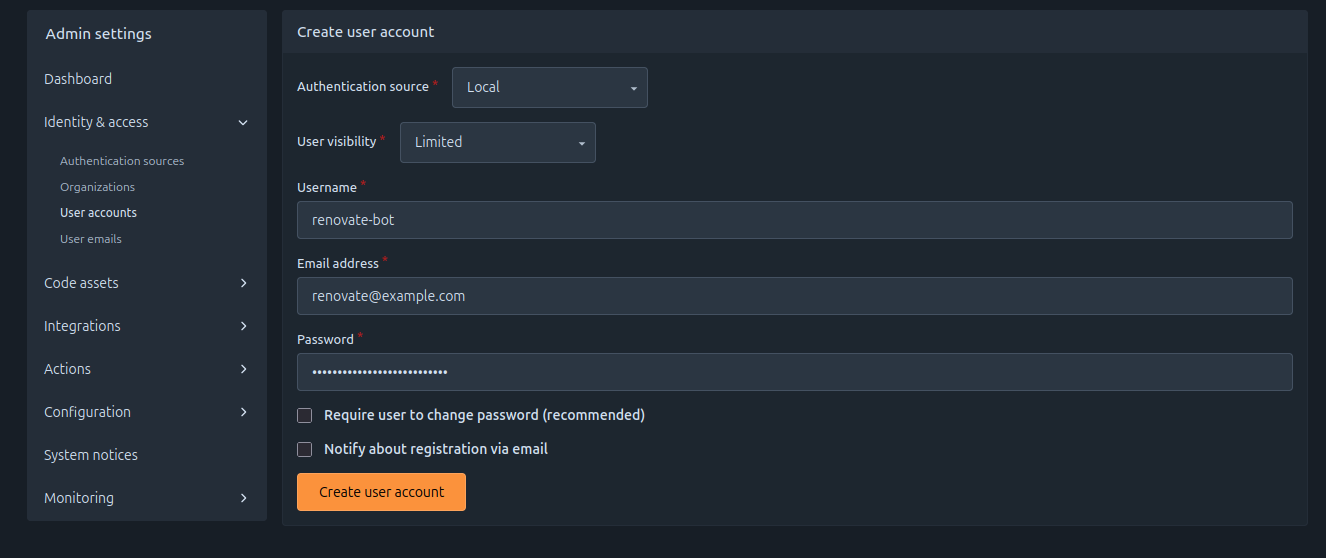
Once the user is created, edit it to set the Full name. Setting it to something like Renovate Bot makes it immediately recognizable in PR activity. Next, log out of your admin account and log in as the newly created Renovate user. Then:
- Profile icon (top right corner) → Settings → Applications
- Create a new Access Token (PAT) and uncheck the box labelled “Require user to change password (recommended)”
The token will need the following permissions, as specified in the official documentation:
| Scope | Permission | Valid for Forgejo versions | Notes |
|---|---|---|---|
repo | Read and Write | all | |
user | Read | all | |
issue | Read and Write | >= 1.20.0 | |
organization | Read | >= 1.20.0 | Required to read org labels and teams |
email | Read | <= 1.19.3 | |
misc | Read | Only for 1.20.0 and 1.20.1 |
Note
Copy and save the generated token before closing the page. You will need it in the next step and Forgejo will not show it again.
Store the Token as a Secret
Now that we have the token, we need to make it available to our workflow without hardcoding it anywhere. Log back in as your regular admin user and create a global Actions secret:
- Profile icon (top right corner) → Settings
- Expand Actions → Secrets
- Click Add Secret
- Name the secret RENOVATE_PAT and paste the token value into the value field
Create the workflow
At this point, you have two options for where to define the Renovate workflow:
- Create the workflow inside a specific repository, which scopes Renovate to that repository only.
- Create a dedicated repository (something like Renovate-CI) and use Renovate’s autodiscovery feature to run it against all repositories on your Forgejo instance automatically.
The second approach scales much better in my use case and is the one we will use here. Worth noting: by default, Renovate skips mirrored repositories, so you do not need to worry about it trying to push changes into read-only mirrors.
Add Renovate Bot user as collaborator
Before setting up the workflow, you need to grant the Renovate Bot user access to each repository you want it to manage. For every target repository on Forgejo:
- Go to the repository → Settings → Collaborators
- Add renovate-bot with Write access (this is the default)
Yes, this step is a bit repetitive if you have many repositories, but it is a one-time setup per repository.
Define the workflow
Create a new repository (for example, Renovate-CI), enable Actions on it and add the following file at .forgejo/workflows/renovate.yaml`. Adjust the configuration to suit your environment (and your needs):
name: Renovate WorkFlow

on:
  schedule:
    - cron: '0/30 * * * *'
  push:
    branches:
      - main
jobs:
  renovate:
    runs-on: docker
    steps:
      - name: Checkout
        uses: actions/checkout

      - name: Run self-hosted Renovate
        uses: https://github.com/renovatebot/github-action
        with:
          docker-network: host # run on the same network as Forgejo
          token: ${{ secrets.RENOVATE_PAT }}
        env:
          # LOG_LEVEL: "debug" # uncomment this just in case it's necessary to debug something
          RENOVATE_ENDPOINT: <https://your-forgejo.example.com>
          RENOVATE_PLATFORM: "forgejo"
          RENOVATE_GIT_AUTHOR: "Renovate Bot <renovate-bot@example.com>"
RENOVATE_AUTODISCOVER: trueThis workflow runs every 30 minutes and also triggers on every push to main, which is useful when you are iterating on the pipeline itself.
Save the file and head over to the Actions tab on the repository to check that the workflow executes successfully.
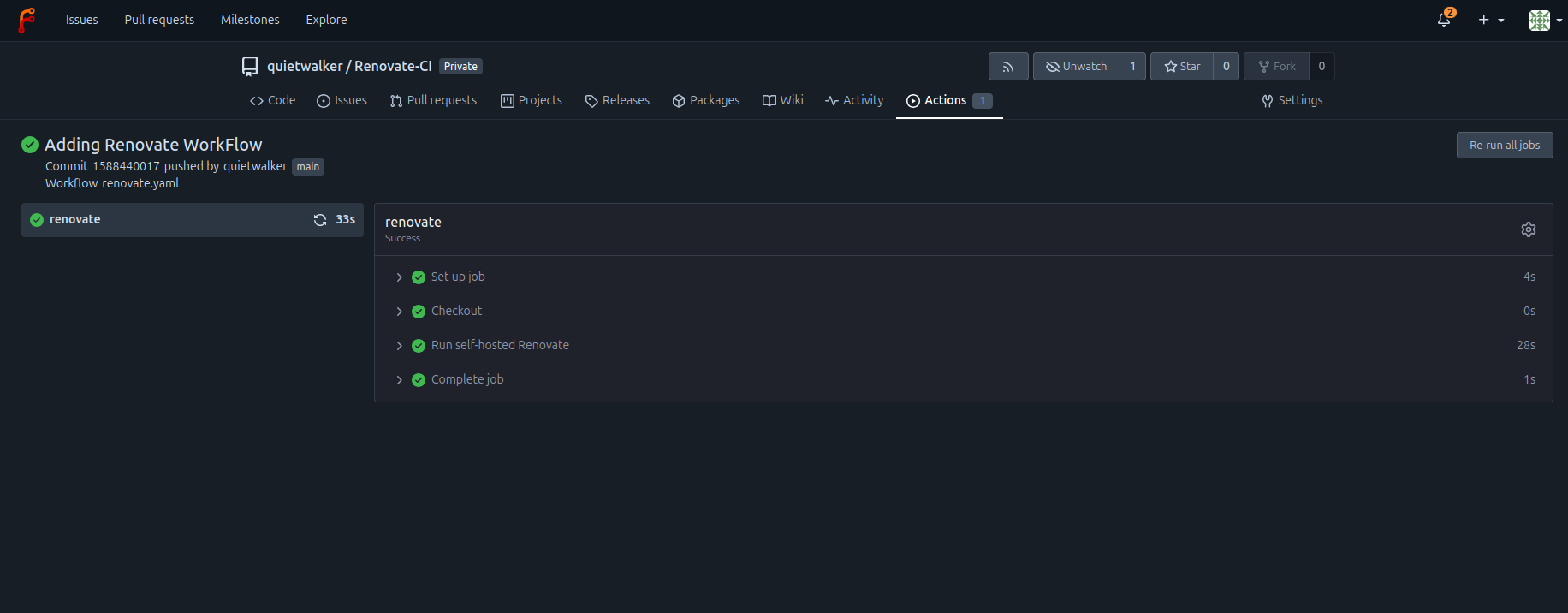
If the run completes without errors, inspect the logs. You should see output along these lines:
 INFO: Autodiscovered repositories
       "length": 5,
       "repositories": [
        .....
]In this case the autodiscover feature found 5 repositories to check. So it works!
Important
You may also spot a warning like this in the logs:
DEBUG: Fetching changelog: https://github.com/ansible/terraform-provider-ansible (1.3.0 -> 1.4.0) (repository=quietwalker/blog-infra, branch=renovate/ansible-1.x)
 WARN: No github.com token has been configured. Skipping release notes retrieval (repository=quietwalker/blog-infra, branch=renovate/ansible-1.x)
       "manager": "terraform",
       "packageName": "ansible/ansible",
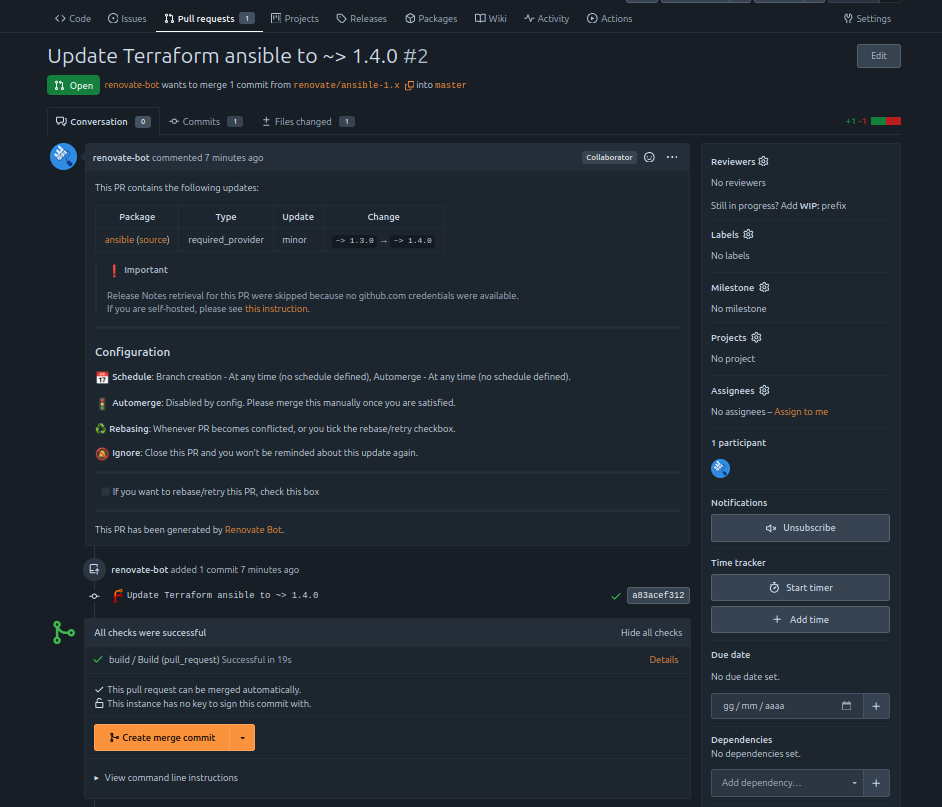
"sourceUrl": "https://github.com/ansible/terraform-provider-ansible"This happens because Renovate needs a GitHub PAT to fetch release notes for packages hosted on GitHub. If you want changelogs included in your PRs, you can configure a GitHub token as an additional secret. This is optional; the update PRs will still be created correctly without it.
Reviewing the Initial PRs
After the first successful run, check your Forgejo notifications. You should see new notifications for each repository that Renovate autodiscovered, all titled “Configure Renovate”.
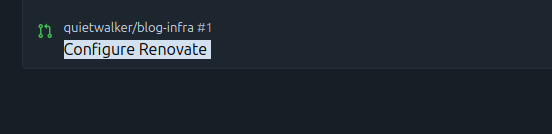
Click on one of these notifications and you will be taken to a PR proposing the addition of a renovate.json configuration file to that repository. This file tells Renovate how to manage dependencies.
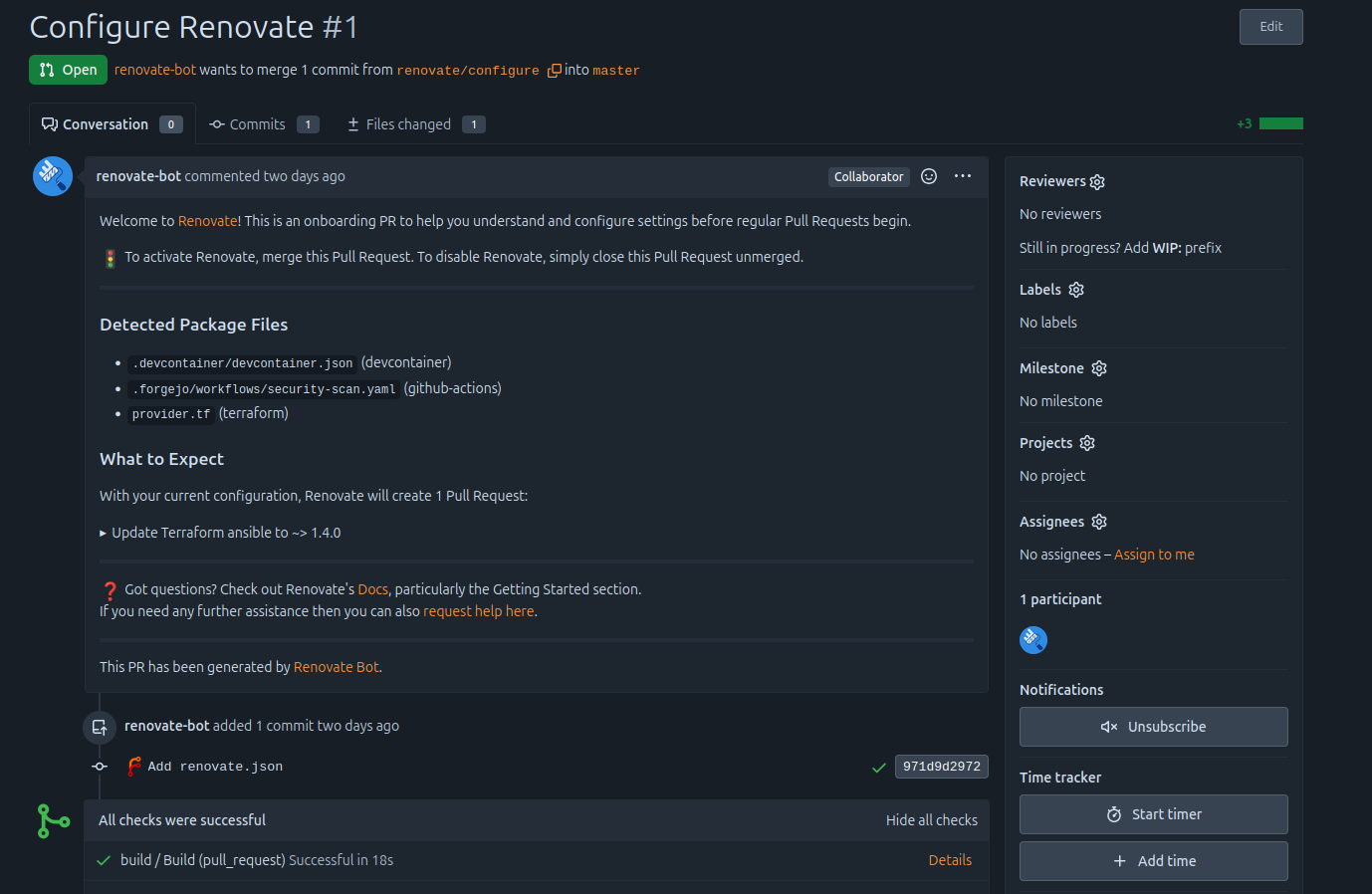
As you can see in the screenshot above, Renovate has already identified the packages it will track and monitor. Merge this PR (and repeat for each notification you received) and you are fully set up. From this point on, Renovate will open a new PR every time an update is available for any monitored dependency across all your repositories.
It feels like magic, isn’t it?
Wrapping Up
With a single workflow repository and a few minutes of initial configuration, you now have a fully automated dependency update pipeline running across your entire Forgejo instance. No more manually checking changelogs, no more “I’ll update this later” turning into “later” being six months ago. Renovate handles the detection and the PR creation; you just review and merge.
If you are running other services in your homelab that could benefit from the same treatment, the setup described here scales cleanly to any number of repositories.
The next logical step is to explore Renovate’s extensive configuration options, such as grouping updates, setting merge schedules or configuring automerge for patch-level changes you trust unconditionally.
Happy hacking on your Forgejo instance!